Set up GitLab merge request comments
- You have gained the necessary resource access and permissions required for deployment.
- You have created a Semgrep account and organization.
- You have connected your source code manager.
- Optionally, you have set up SSO.
- You have successfully added a Semgrep job to your CI workflow with diff-aware scanning.
Semgrep can create merge request (MR) comments in your GitLab repository. These comments provide a description of the issue detected by Semgrep and may offer possible solutions. These comments are a means for security teams, or any team responsible for creating standards, to help their fellow developers write safe and standards-compliant code.
Automated comments on GitLab merge requests are displayed as follows:
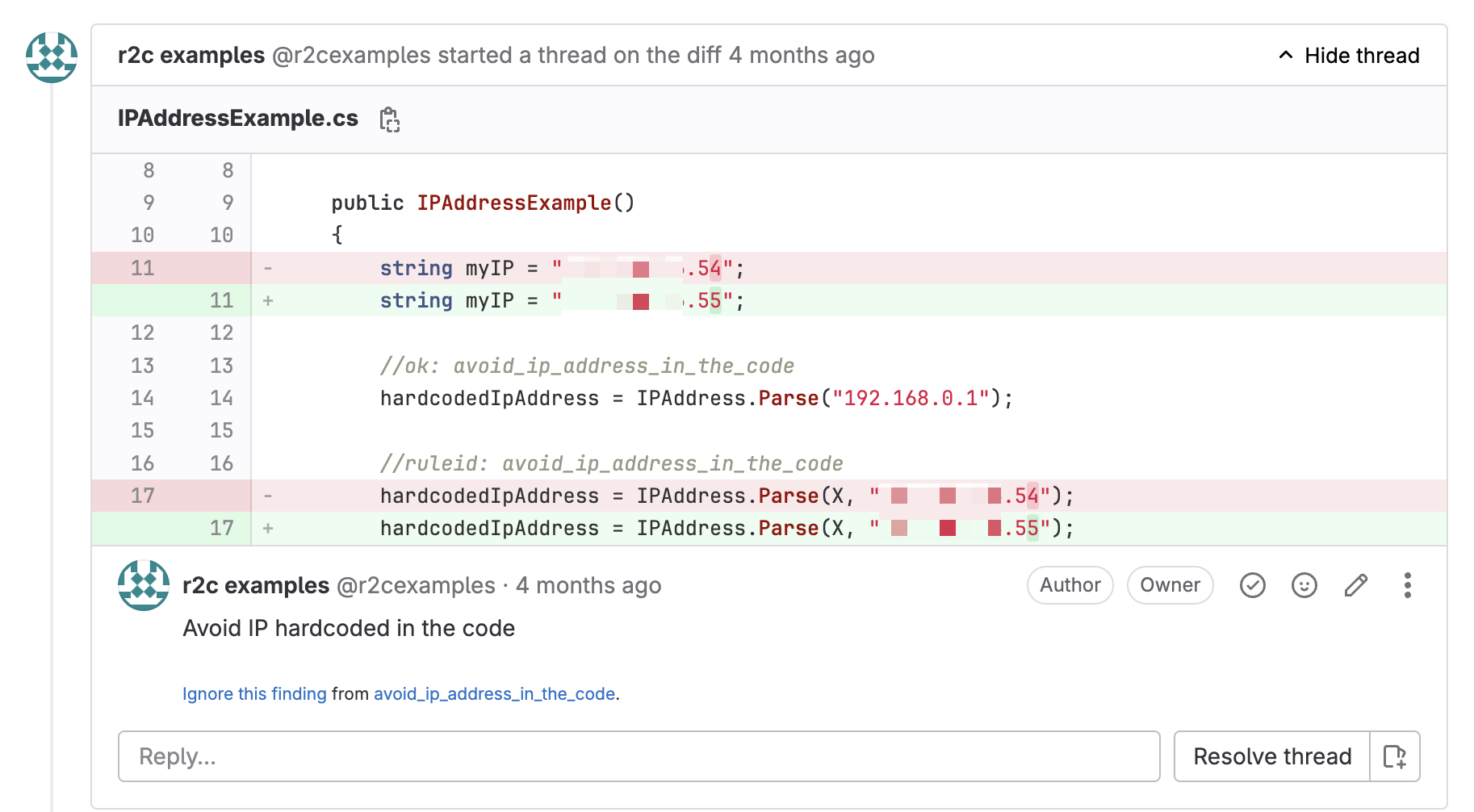 Figure An inline GitLab merge request comment.
Conditions for MR comment creation
MR comments appear for the following types of scans under these conditions:
| Type of scan | Product name | Trigger condition | How to set up |
|---|---|---|---|
| Static application security testing (SAST) | Semgrep Code | A comment appears when a finding is generated by a rule in Comment or Block mode. This means you can fully customize what comments your developers receive. | Complete the steps in the following sections: |
| Software composition analysis (SCA) | Semgrep Supply Chain (SSC) | A comment appears based on the conditions you explicitly set in a Supply Chain policy or when Semgrep detects a license violation. | To receive Supply Chain comments, complete the steps in Confirm account connection and access and set up a policy. To receive license violation comments, enable dependency search. |
| Secrets | Semgrep Secrets | A comment appears when a finding is generated by a rule in Comment or Block mode. A comment also appears for invalid findings and validation errors if these conditions are set to Comment or Block mode. | Complete the steps in the following sections: |
Comments from Supply Chain scans include the following information:
- Risk
- A description of the vulnerability, including the types of attack it is vulnerable to.
- Fix
- Indicates what versions to upgrade to, if any, that resolves or eliminates the vulnerability.
- Reference
- A link to additional information about the vulnerability from its source, such as the GitHub Advisory Database and the National Vulnerability Database (NVD), if available.
Steps to set up MR comments
Confirm your Semgrep account's connection
PR comments are enabled by default for users who have connected their GitLab group to Semgrep AppSec Platform. Confirm that you have the correct connection and access:
- In your Semgrep AppSec Platform account, click Settings > Source code managers.
- Check that an entry for your GitLab group exists and is correct.
Triage through MR comments
Developers can triage Semgrep findings without leaving GitLab by responding to the MR comments authored by Semgrep. To use this feature, you must have a paid GitLab plan, and must update your source code manager (SCM) connection to use an access token with an elevated role. This allows you to enable webhooks, which Semgrep requires for the triage through MR comments feature.
Ensure that you're using one of the following GitLab plans:
- GitLab Premium
- GitLab Ultimate
- GitLab Self Managed
- Log in to GitLab, and create an access token with access to the desired GitLab groups. Assign the
apiscope and one of the following roles:OwnerAdmin
- Return to Semgrep and sign in.
- Go to Settings > Source code managers, and find your GitLab connection.
- Click Update access token.
- In the Update access token dialog that appears, provide the new token you created. Click Update to save and proceed.
- Toggle the Incoming webhooks setting on.
Once you've successfully enabled webhooks and the Triage via code review comments toggle is on, you can change the role for the token you provide to Semgrep to one that's more restrictive, such as Developer.
Configure comments for Semgrep Code
In addition to setting up the connection between Semgrep and GitLab, you must assign rules to Comment or Block mode. This customization enables you to:
- Manage the amount of MR comments your developers receive.
- Ensure that only rules that meet your criteria, such as high severity or high confidence rules, produce comments visible to developers, reducing noise.
Set rules to Comment or Block mode
The following instructions let you customize what findings or security issues your developers see as comments in their PRs:
- In your Semgrep AppSec Platform account, click Rules > Policies to enter the Policies page. Under Modes , you can quickly see if you have existing rules in either Comment or Block mode.
- Optional: To configure Semgrep Secrets rules, click the Secrets tab.
- Optional: Use the filters to quickly find rules to set to Comment or Block.
- Click the checkbox of the rules you want to set. You can use Ctrl + Click to select rules in bulk.
- Click Change modes.
- Click either Block or Comment.
You have successfully configured MR comments for Semgrep Code.
Rules in Block mode fail the CI job that runs on the MR. Depending on your workflow, this may prevent your MR from merging.
Configure comments for Semgrep Secrets
In addition to setting up the connection between Semgrep and GitLab, you must assign rules to Comment or Block mode. This customization enables you to:
- Manage the amount of MR comments your developers receive.
- Ensure that only rules that meet your criteria, such as high severity or high confidence rules, and result in findings involving valid secrets produce comments visible to developers, reducing noise.
Set rules to Comment or Block mode
The following instructions let you customize what findings or security issues your developers see as comments in their PRs:
- In Semgrep AppSec Platform, go to Rules > Policies > Secrets.
- Under Modes , you can see if you have existing rules in either Comment or Block mode. You can also use the filters to find rules you want to set to Comment or Block.
- Click the checkbox of the rules you want to set. You can use Ctrl + Click to select rules in bulk.
- Click Change modes.
- Click either Block or Comment.
You have successfully configured MR comments for Semgrep Secrets.
Validation state policies
Validation state policies allow you to define how Semgrep handles the following issues:
- Invalid findings: the secret has been revoked, was never functional, or used for a custom or private endpoint that Semgrep can't communicate with. For example, a Semgrep rule that tests GitHub credentials may return an invalid finding if Semgrep can't communicate with an on-premise deployment.
- Validation errors: Semgrep was unable to reach the secrets provider to test the validity of the credential, or Semgrep received an unexpected response from the API
To edit the policy for invalid secrets and errors:
- In Semgrep AppSec Platform, go to Rules > Policies > Secrets.
- Click Validation State Policies.
- Choose the mode, either Comment or Block, that you want Semgrep to set for Invalid findings.
- Choose the mode, either Comment or Block, that you want Semgrep to set for Validation errors.
Rules in Block mode fail the CI job that runs on the MR. Depending on your workflow, this may prevent your MR from merging.
Configure comments for Semgrep Supply Chain
To configure comments for Supply Chain, you must define a Supply Chain policy. This policy lets you set the specific conditions, such as transitivity and reachability, that trigger a comment. These conditions are unique to Supply Chain findings.
See the Policies documentation for more information.
Receive comments in your VPN or on-premise SCM
If you are behind a firewall, are using a virtual private network (VPN), or have network restrictions regarding access, you may need to add the following IP addresses to the ingress allowlist and egress allowlist:
# Ingress IP addresses (from Semgrep to your infrastructure)
# and egress IP addresses (from your infrastructure to Semgrep)
35.166.231.235
52.35.248.246
52.34.137.110
44.225.64.41
Additional egress IP addresses
You must also add CloudFront IP addresses to your egress allowlist. Refer to Locations and IP address ranges of CloudFront edge servers for a list of IP addresses.
Test your configuration
Test that you are able to receive findings by manually triggering a scan through your CI provider.
Receiving PR or MR comments may require additional steps depending on the custom configuration of your VPN or SCM (for example, if you use a static IP without a hostname). Reach out to Semgrep Support with any concerns.
You've set up MR comments! Enable optional features provided in the following sections, or see Next steps.
Optional features
Enable Rule-defined fix in GitLab repositories
Rule-defined fix is a Semgrep feature in which rules contain suggested fixes to resolve findings.
To enable Rule-defined fix for all projects in your Semgrep AppSec Platform organization, follow these steps:
- In Semgrep AppSec Platform, go to Settings > General > Code.
- Use the Rule-defined fix toggle to enable this feature.
Dataflow traces in MR comments
With dataflow traces, Semgrep Code provides you a visualization of the path of tainted, or untrusted, data in specific findings. This path can help you track the sources and sinks of the tainted data as they propagate through the body of a function or a method. For general information about taint analysis, see Taint tracking.
You can view dataflow traces in the MR comments created by Semgrep Code.
View the path of tainted data in MR comments
To enable dataflow traces in your MR comments, fulfill the following prerequisites:
- Set up Semgrep to post GitLab merge request comments, as described on this page.
- To get the most meaningful results of dataflow traces in MR comments, use cross-file analysis while scanning your repositories. To enable cross-file analysis, see Perform cross-file analysis.
- Not all Semgrep rules or rulesets make use of taint tracking. Ensure that you have a ruleset such as the default ruleset added to your Policies. If this ruleset is not added, go to https://semgrep.dev/p/default, and then click Add to Policy. You can add rules that use taint tracking from Semgrep Registry.
Customize MR comments
You can customize the comments Semgrep leaves on your MR. Custom comments allow you to direct your teams to the resources they need to handle the vulnerabilities Semgrep identifies in their code.
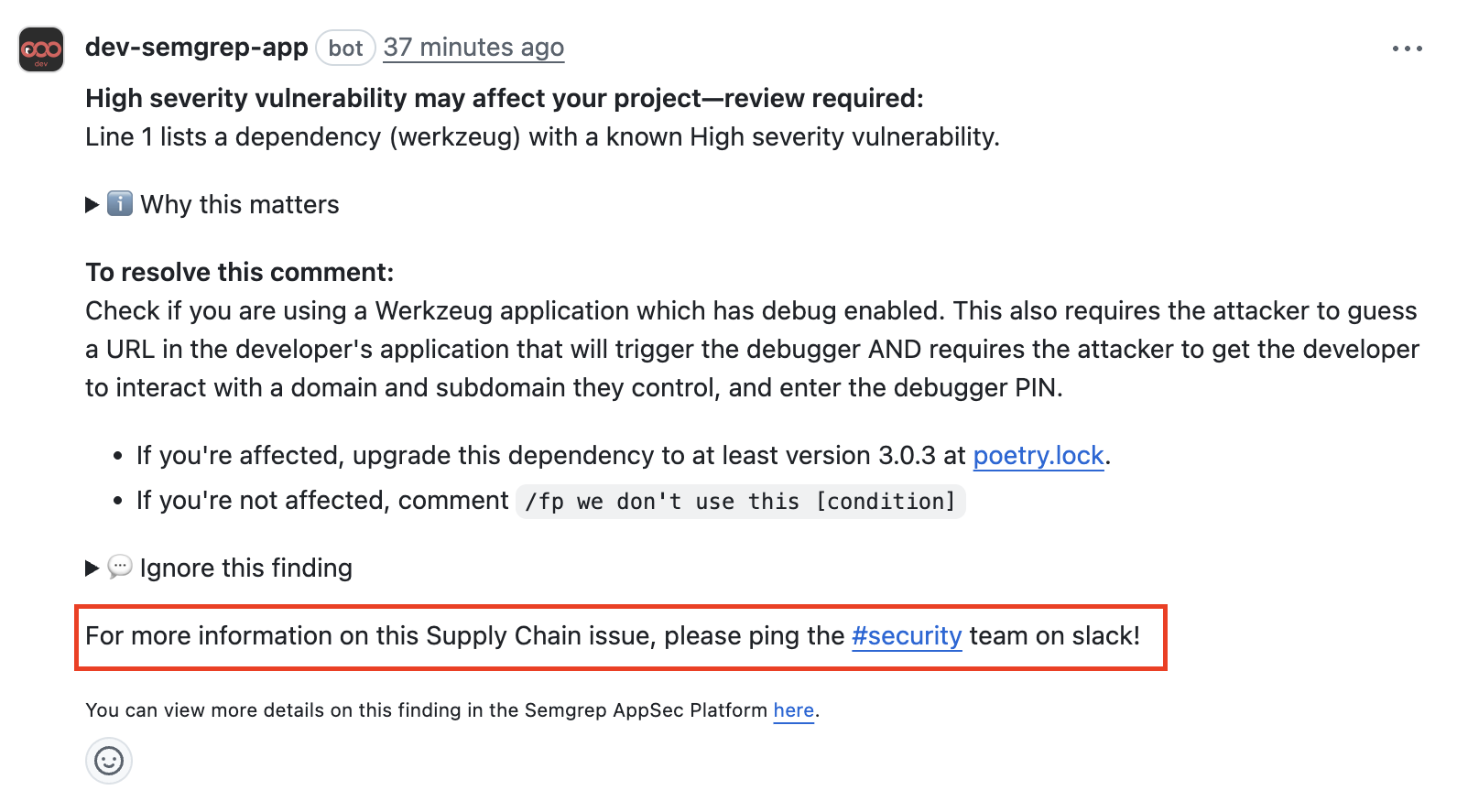 Figure. A custom comment with instructions on how to obtain more information about a finding.
To provide custom MR comments:
- Sign in to Semgrep AppSec Platform.
- Navigate to Settings > General > Global.
- Go to the Custom PR/MR comments footers section.
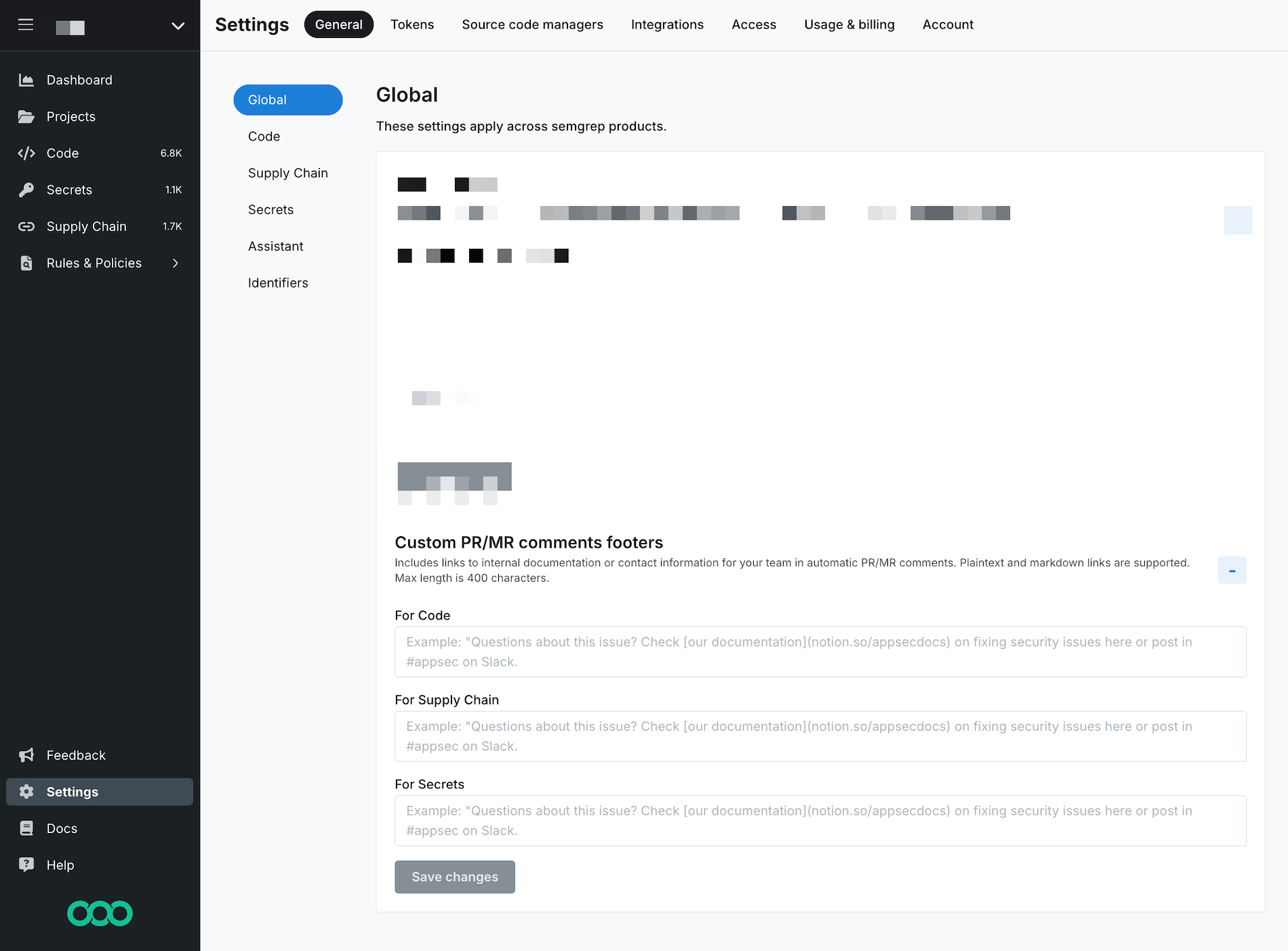 Figure. Custom comment configuration in Semgrep AppSec Platform.
 - Provide a custom comment for each Semgrep product whose findings you want to generate a PR comment. Semgrep supports HTML, Markdown, and plaintext links in your message.
- Click Save changes.
Next steps
You've finished setting up a core deployment of Semgrep 🎉.
- Explore recommended tasks after deployment in Beyond core deployment.
Additional references
Not finding what you need in this doc? Ask questions in our Community Slack group, or see Support for other ways to get help.